How to use Notch.
A quick walk through every page in the app: what it shows, and how to get the most out of it. New to Notch? In the app, Settings → Help → How Notch works gives you the same tour.
Overview
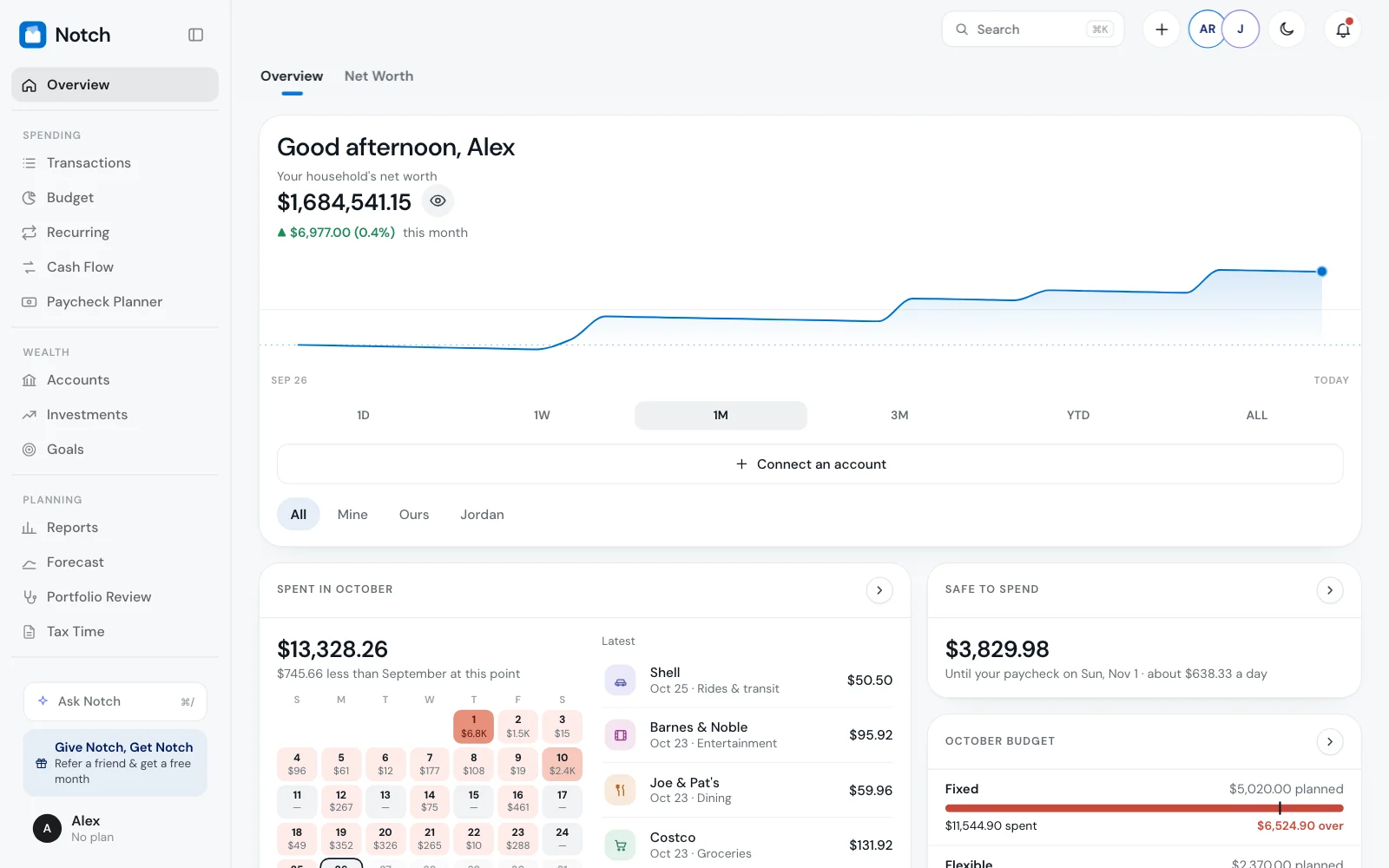
Your home base. Net worth up top with a chart from 1 day to all time, then cards for what needs you, Safe to spend, this month's spending calendar (tap a day to see what you spent), your budget, goals, investments and home.
- Tap the range buttons under the chart to see how your net worth changed over a week, a month or the year.
- Use Connect an account to add banks, cards, investments and loans.
- Today's notch changes daily. It might be transactions to review or a lesson to read.
Cash Flow
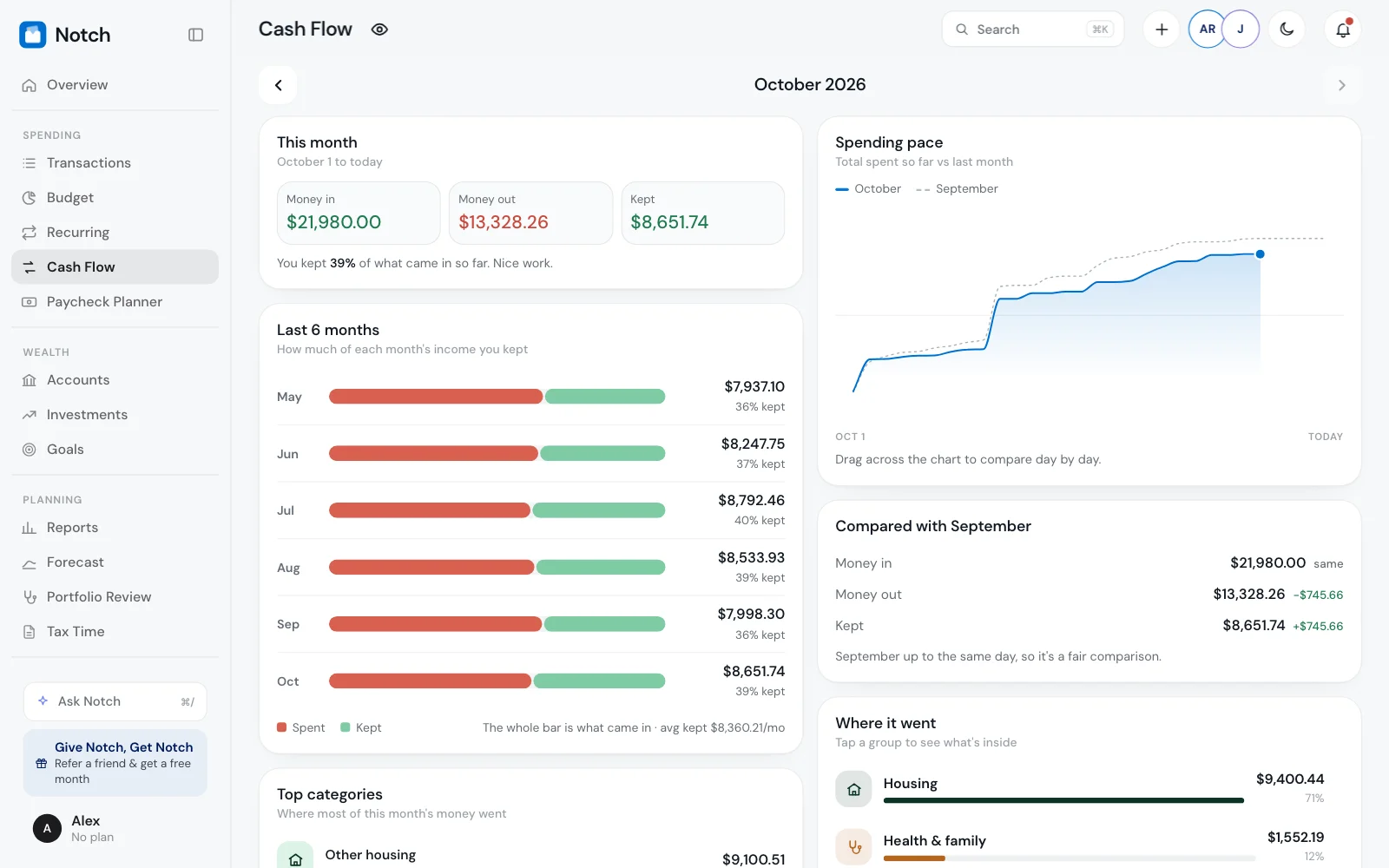
Money in versus money out, month by month. Use it to see whether you're spending less than you earn, and which categories move the needle.
- Pick a month at the top to see that month's income, spending and what's left.
- Tap a category to see every transaction in it.
- Transfers between your own accounts and credit card payments don't count as spending, so nothing is double counted.
Paycheck Planner
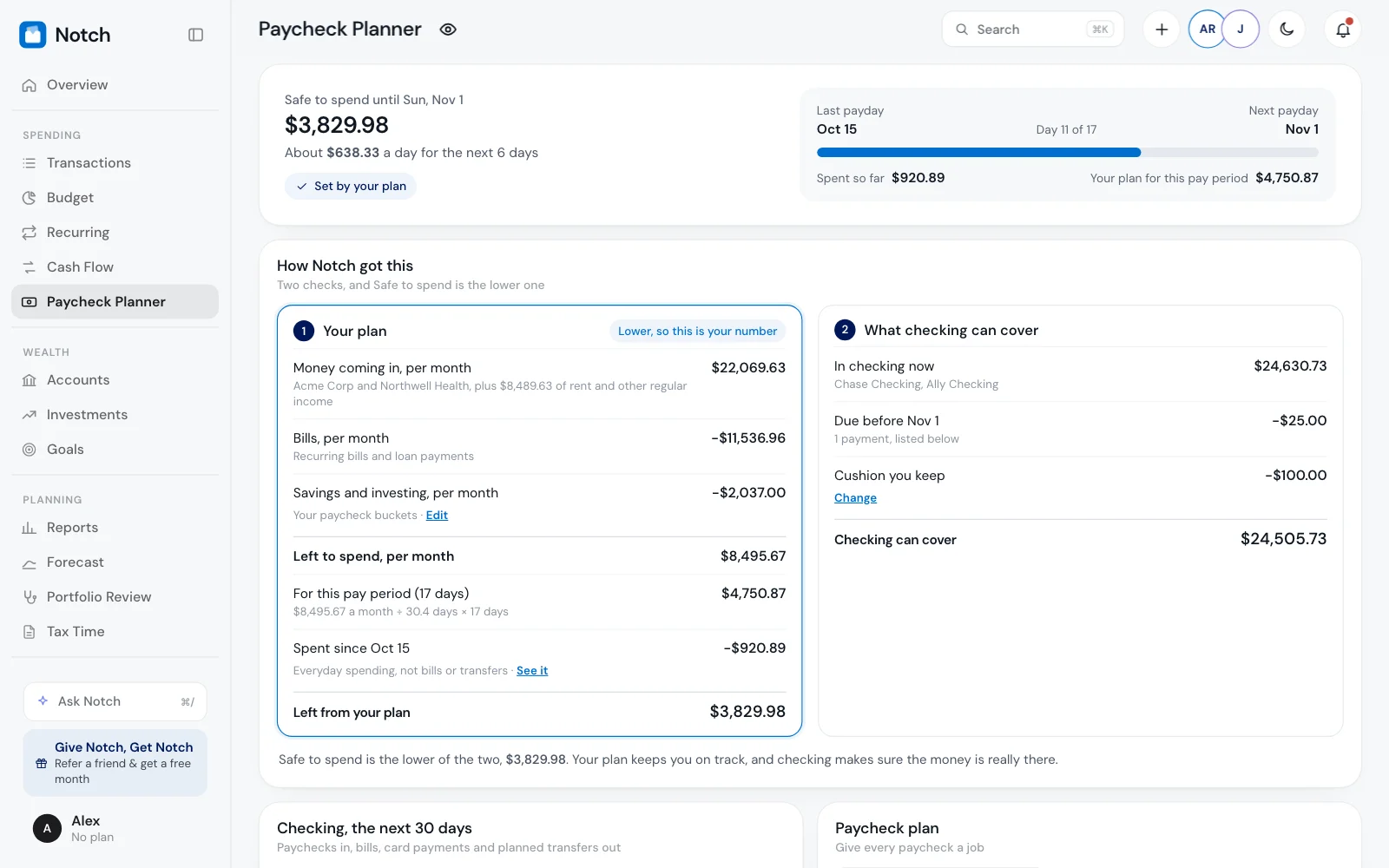
Tells you what's safe to spend before your next paycheck, after bills, card payments and savings are set aside. Start by telling Notch which deposits are your paychecks.
- Tap Set up your paychecks and pick a recent deposit, or enter your take-home pay and next payday yourself.
- Safe to spend shows the total and a per-day amount until payday.
- The 30-day view warns you before your checking balance gets low.
Budget
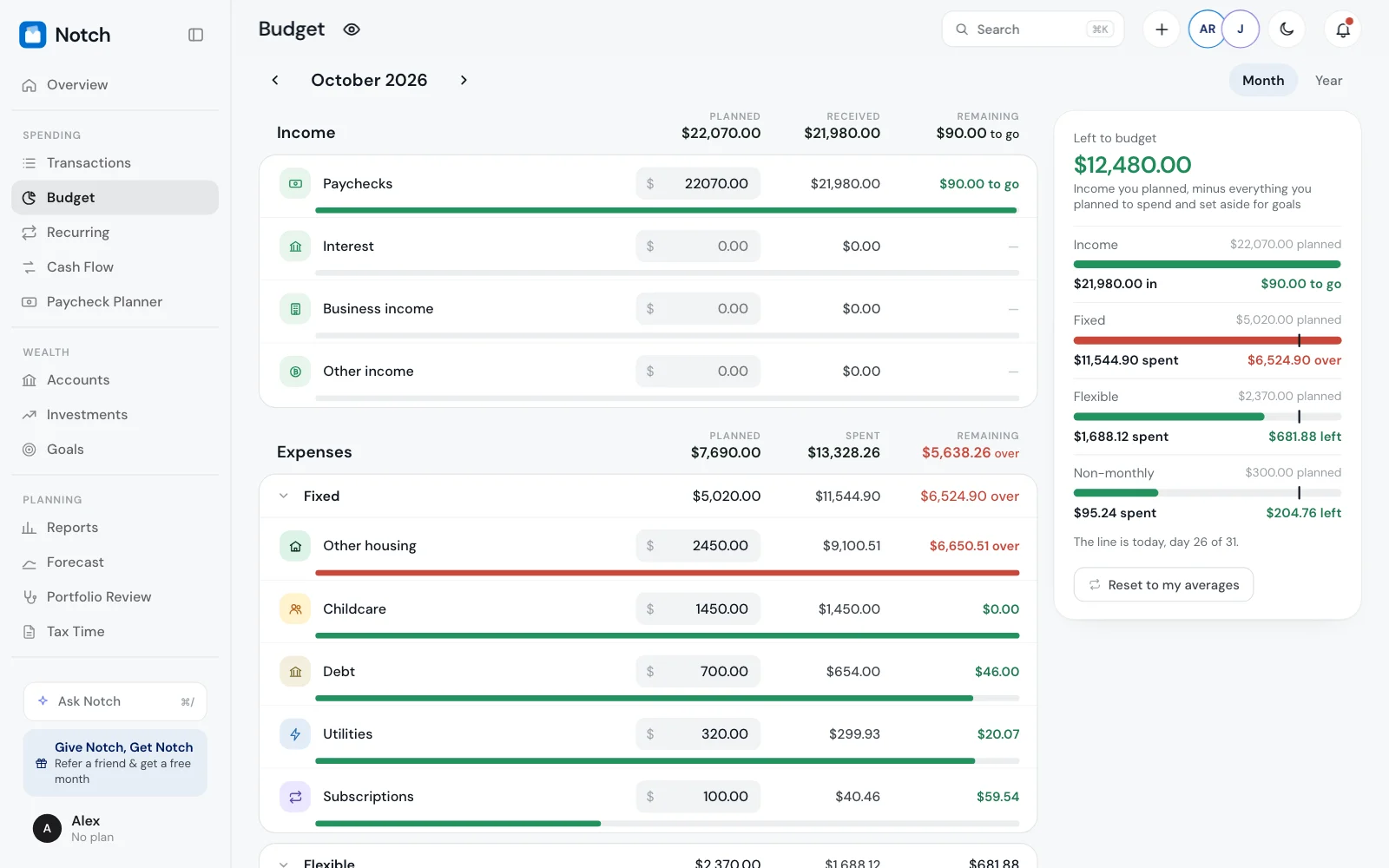
Income, then Fixed, Flexible and Non-monthly expenses, each with what you planned, spent and have left. It starts from your last 3 months. Type over any amount to change it.
- Tap a category to change its limit.
- The bar shows how much you've spent and how you're pacing for the month.
- Going over isn't a failure. Adjust the limit to what the real number turns out to be.
Transactions
Every transaction from every account in one list, grouped by day. Notch sorts them into categories; anything it isn't sure of lands in Uncategorized for you to pick. Search, filter and sort by amount.
- Tap a transaction to change its category, rename it, add a note or split it with your partner.
- Use search and filters to find anything by name, amount, account or date.
- Mark transactions as reviewed so you know what you've already checked.
Recurring
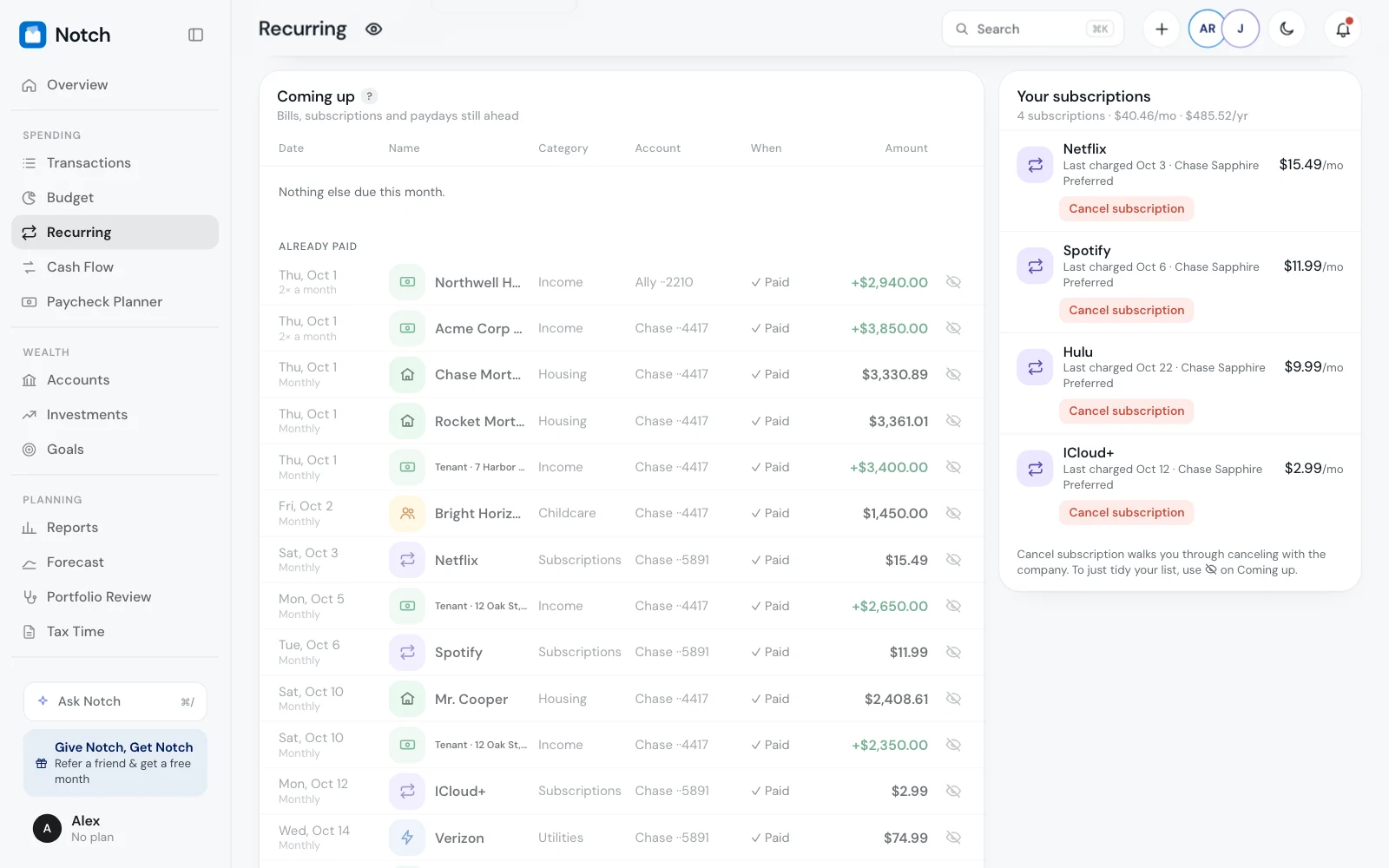
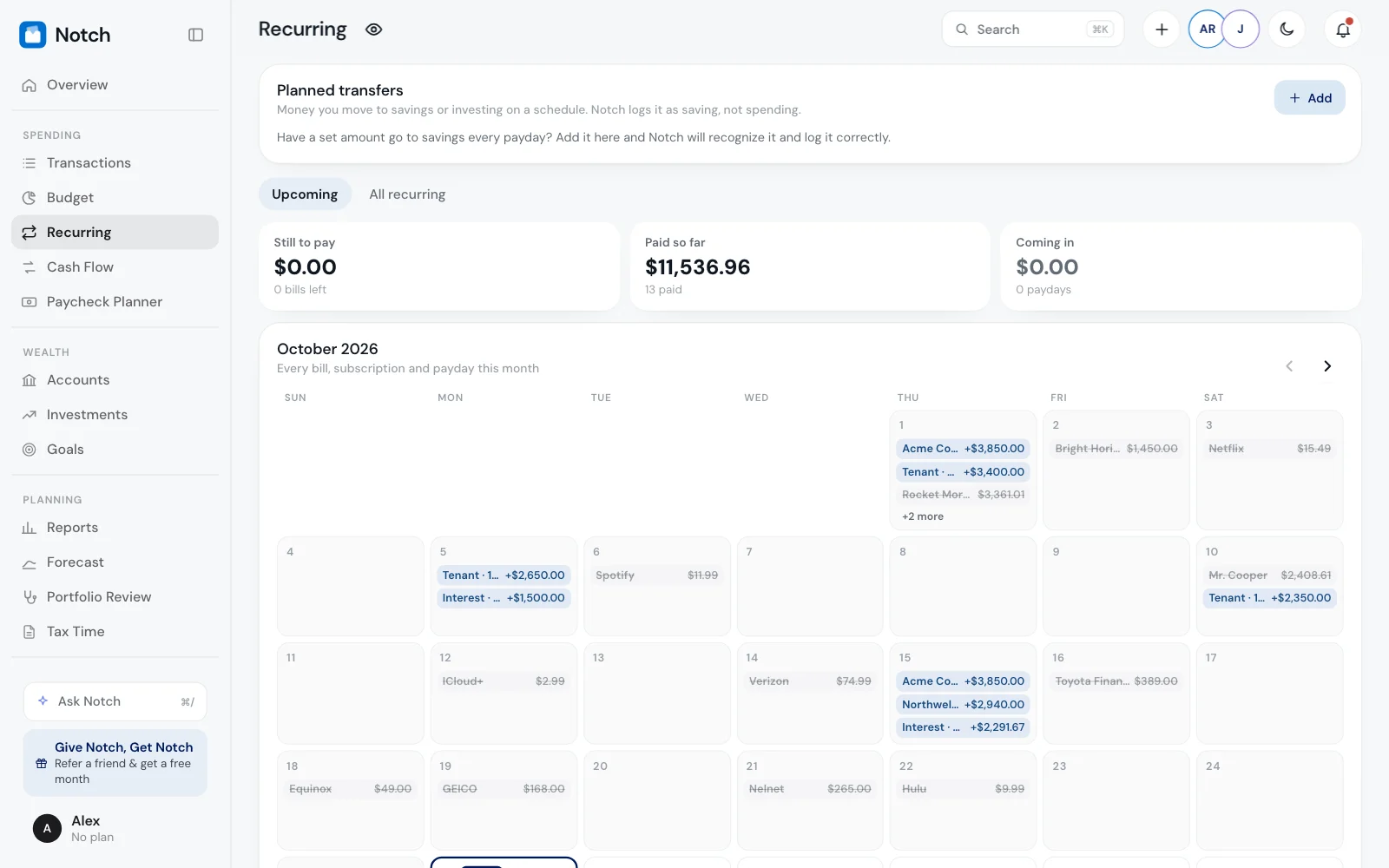
Bills, subscriptions and paydays on one calendar, with what's still to pay this month. Notch finds most of them on its own.
- Check the calendar to see what's due and when.
- Add anything Notch missed, including planned transfers like moving money to savings.
- Look at the subscriptions list to see what you're paying for every month.
Reports
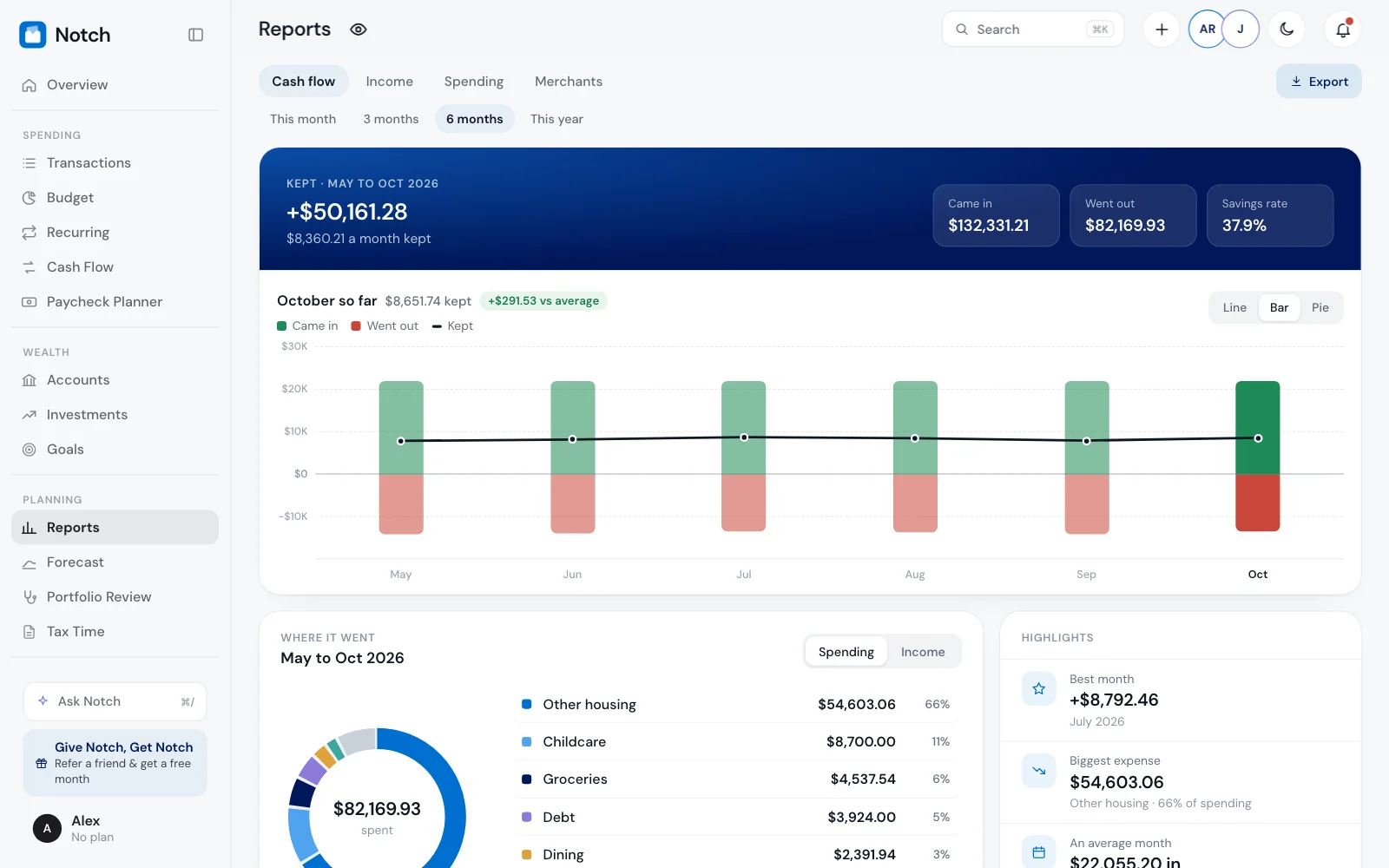
Spending, income, cash flow and merchants over the range you pick, with a bar for each month, key numbers and a few things worth knowing.
- Choose a time range and compare it with the one before.
- Tap any bar or category to see the transactions behind it.
- Use it at the end of each month to see what changed.
Investments
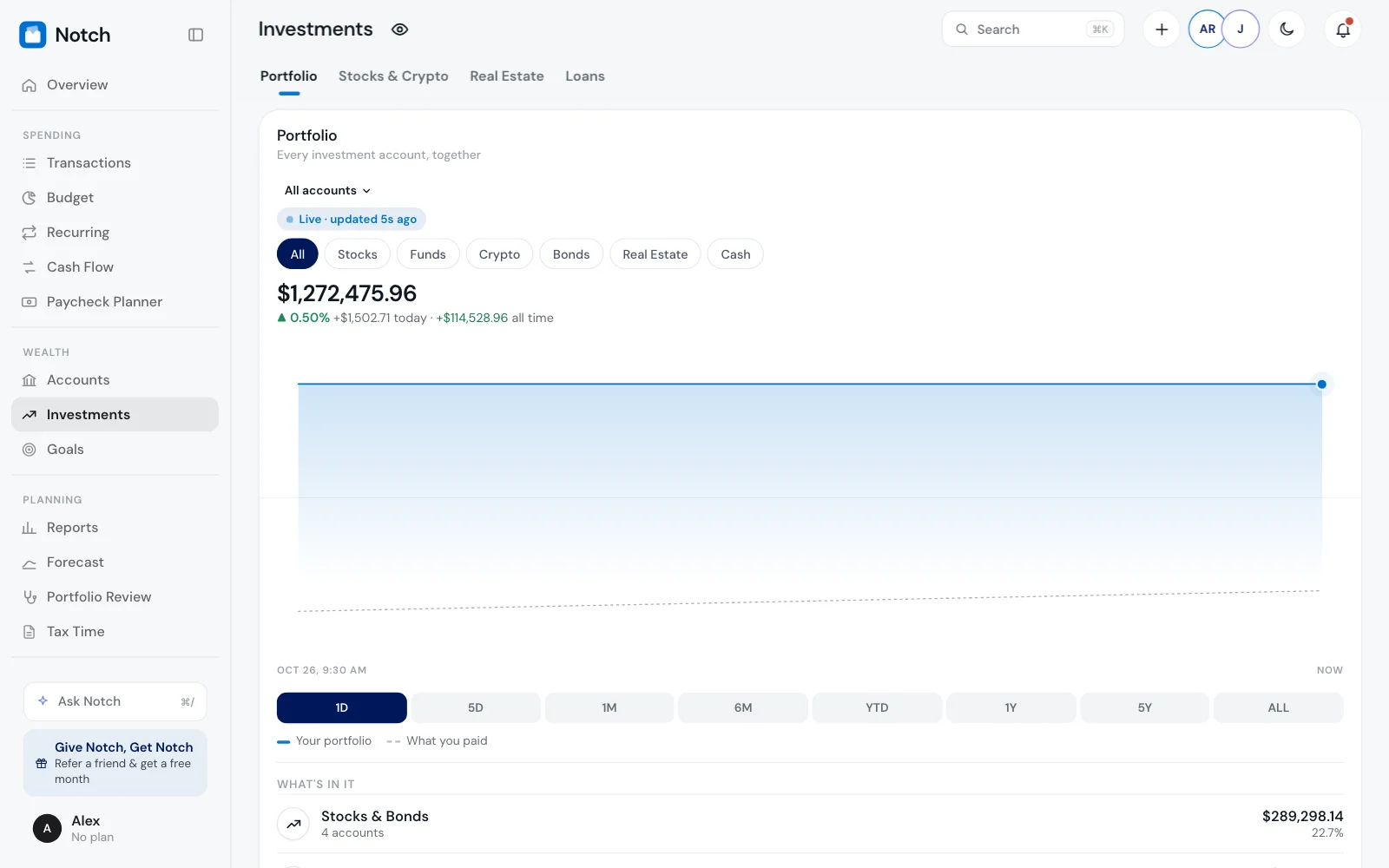
Everything you own together: stocks, funds, crypto and your real estate equity, with live prices. The tabs on top switch between Portfolio, Stocks & Crypto, Real Estate and Loans.
- Switch ranges from 1D to All to see longer trends.
- Use the account picker to look at one account or all of them.
- Upcoming events lists earnings dates for what you own and watch, plus Fed decisions and market holidays.
Stocks & Crypto
Each account's stocks, funds and coins, with value and today's change. Fold an account shut, or tap its name for its chart, gain or loss and what's in it.
- Sort by value, gain or today's move.
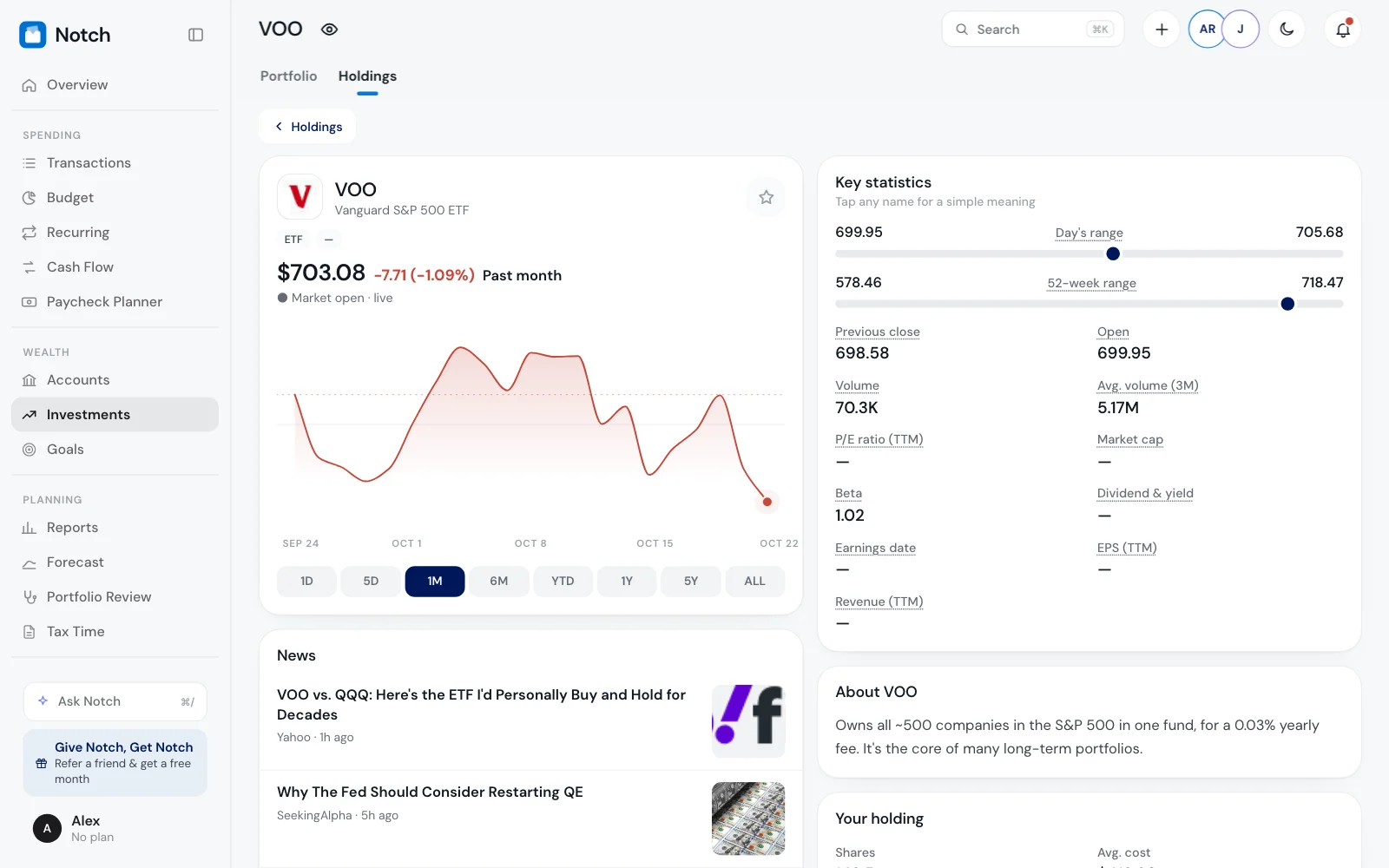
- Tap a holding for its chart, news, earnings date and key statistics.
- Add stocks to your watchlist to follow them without owning them.
Real Estate
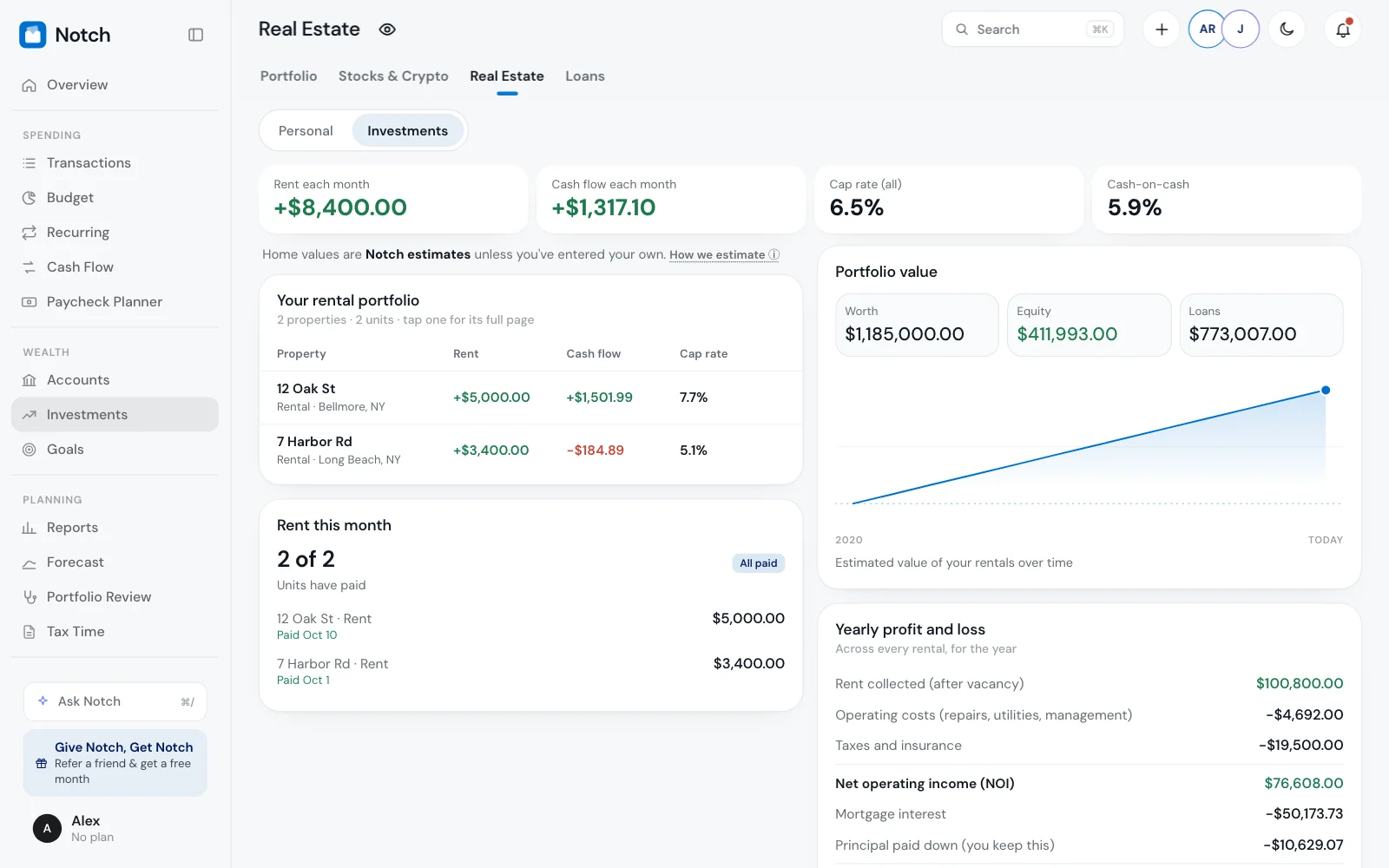
A tab in Investments for your home, rentals and every loan. See your equity grow, what your home really costs each month, and what each rental earns. Money you've lent out is under the Loans tab.
- Add a property by address. Notch estimates its value, or you can enter your own.
- Link or add the mortgage so principal, interest and escrow stay current.
- For rentals, add rent and expenses to see cash flow and profit.
Accounts
Every account you've connected or added, grouped by type, with a net worth chart. Tap one for its balance history and transactions, or to set your share of a joint account.
- Tap Connect an account to link another bank, card, investment or loan through Plaid.
- Add accounts by hand for anything that can't be linked.
- If an account shows a warning, tap it and sign in again to reconnect.
Forecast
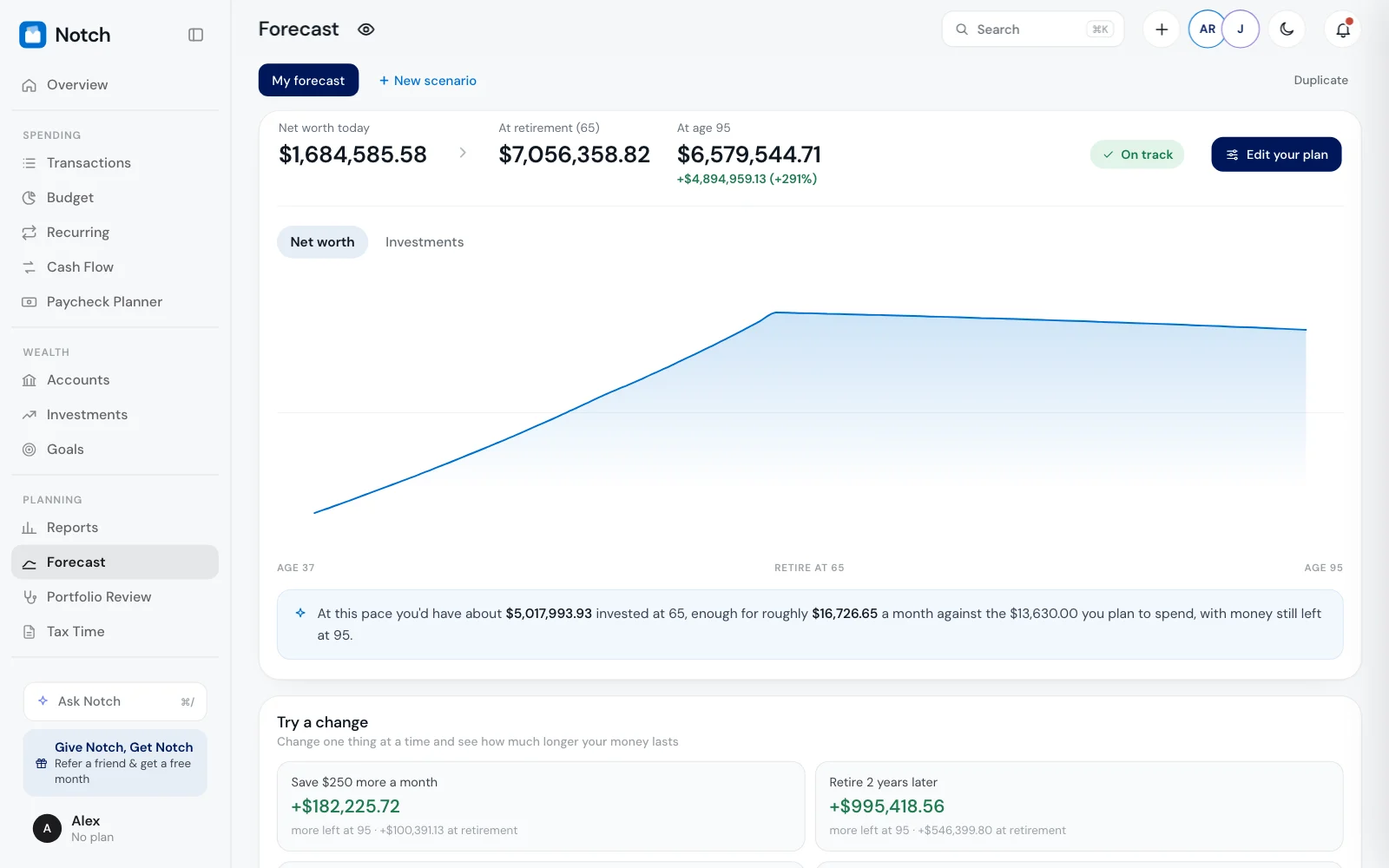
Projects your money forward to retirement using your real budget and accounts. Add life events and compare different paths side by side.
- Answer a few questions about your age, income and when you'd like to retire.
- Add life events like a home purchase, a baby or a career break.
- Create another path to compare, like retiring earlier or saving more.
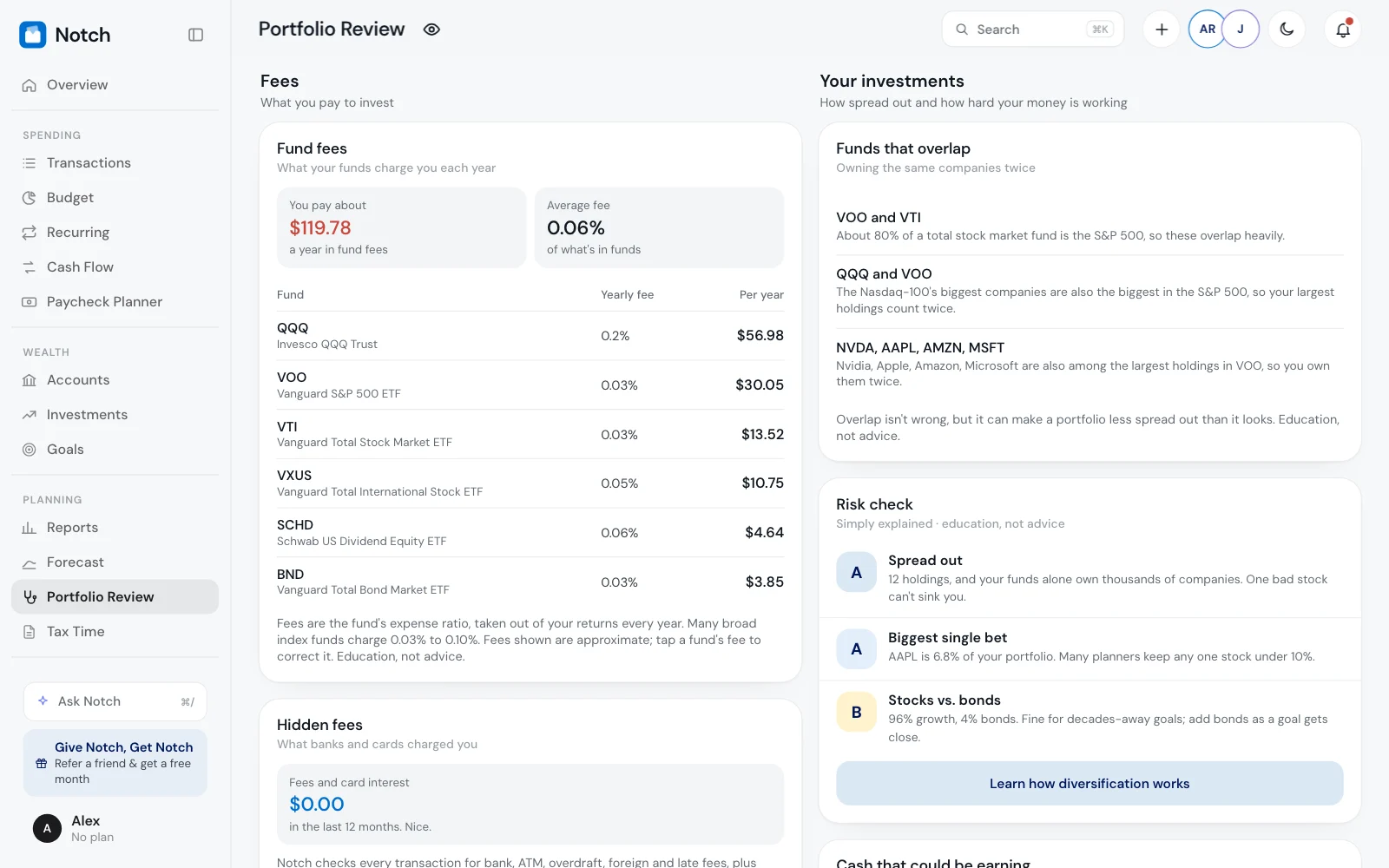
Portfolio Review
A yearly checkup for your investments: the fees your funds charge, your 401(k) match, cash that could be earning more, and funds that overlap. Part of Notch Pro.
- Start with Fund fees to see what you pay each year in fund expenses.
- Check the 401(k) match card to make sure you're not leaving free money behind.
- Scroll down for retirement pace and your contributions this year.
Tax Time
Your year's numbers in one place for you or your accountant: income, mortgage interest and property taxes, rentals, charity and medical totals, and the forms to expect. Part of Notch Pro.
- Pick the tax year at the top. From January to April it starts on last year.
- Tag transactions #tax during the year so they show up here.
- Download the summary and send it to your accountant, or save it as a PDF.
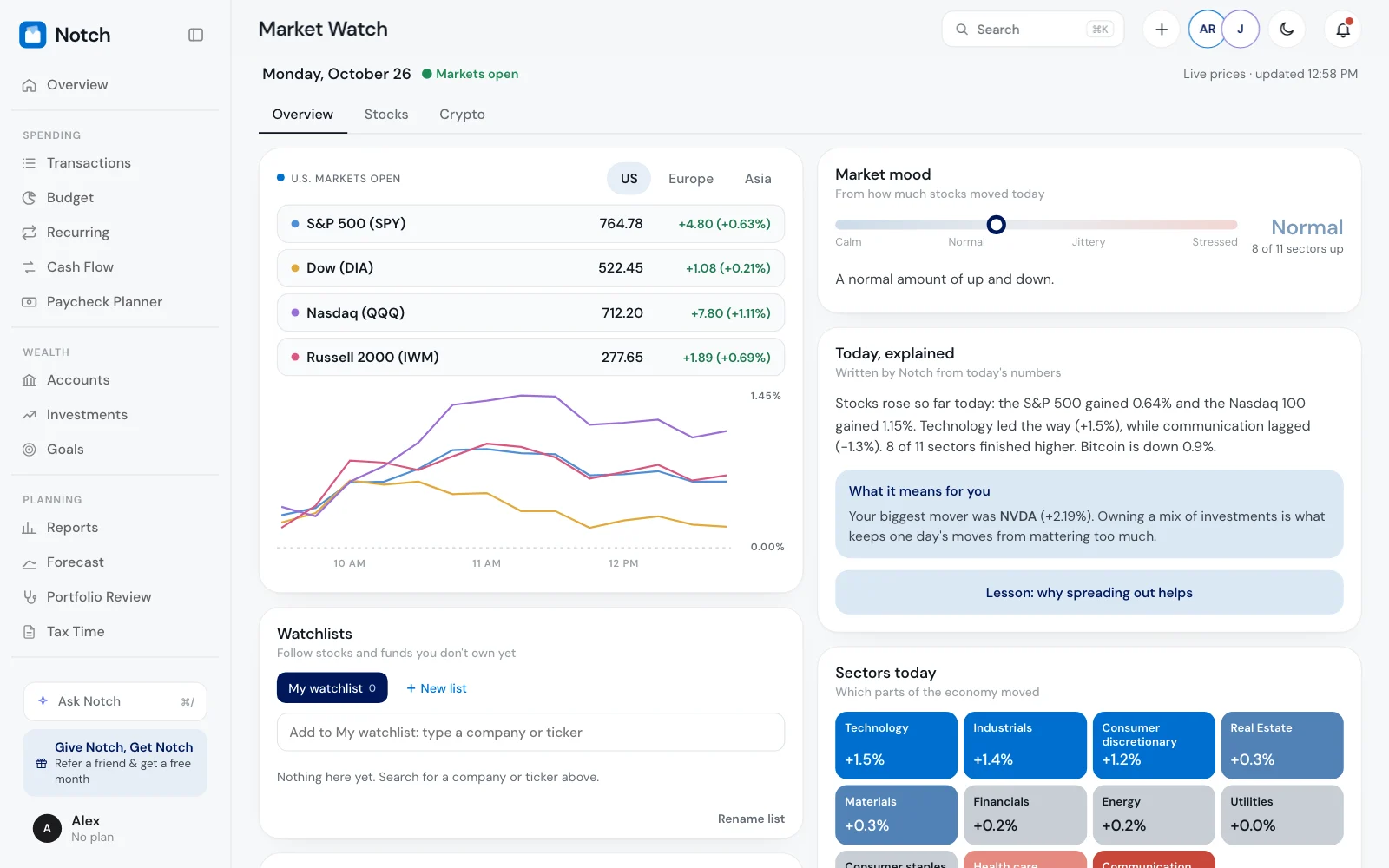
Market Watch
What the market did today and why it matters to you: the major indexes, the biggest movers, and how your portfolio compares.
- Check the indexes at the top for the day's big picture.
- See how your holdings did against the market.
- Tap any stock to open its page.
Lessons
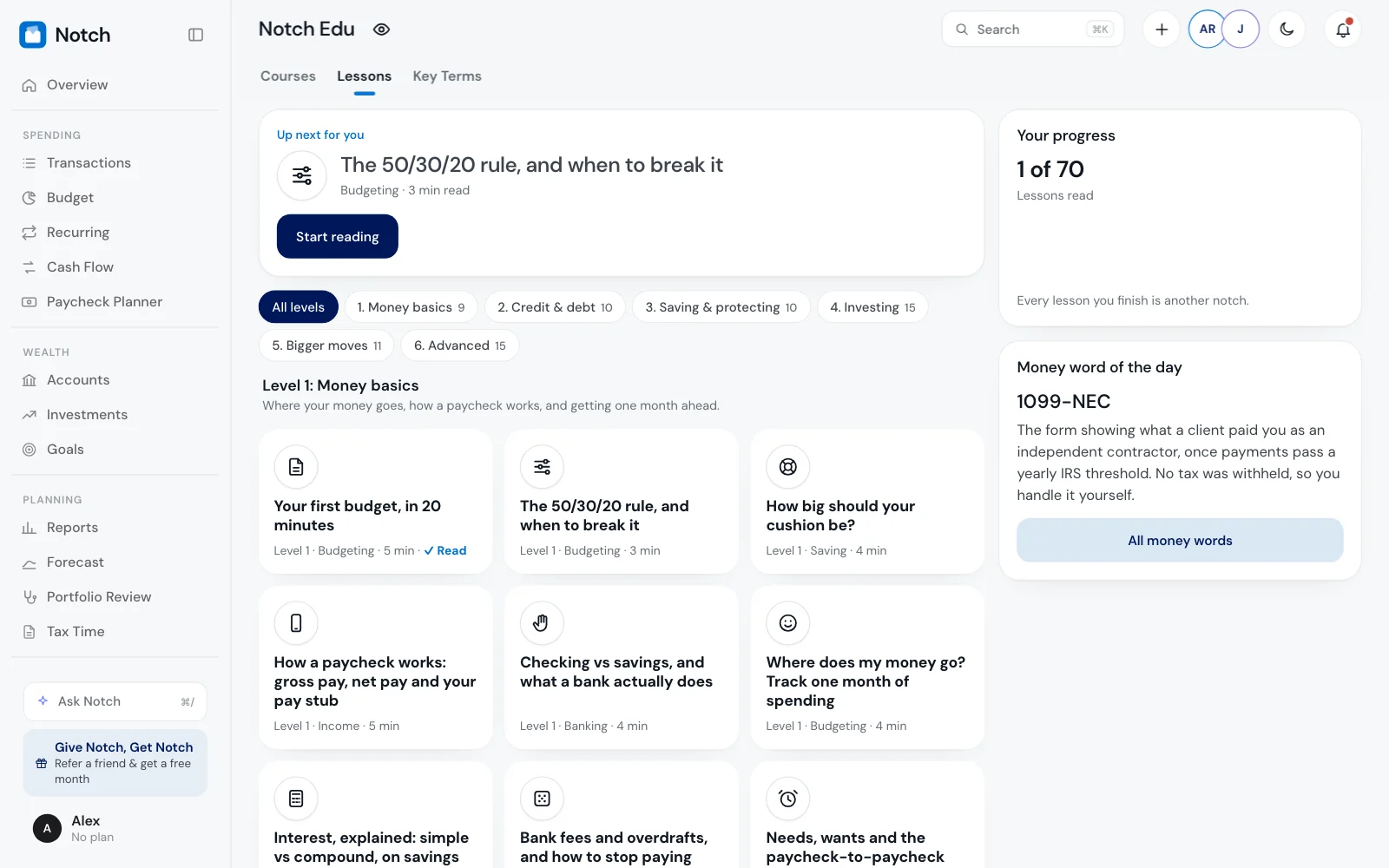
Short lessons in six levels, from how a paycheck works to tax strategies and real estate deals. Start at Level 1 or jump to what you need.
- Use the level buttons to see one level at a time.
- Lessons you've read get a check mark, and Up next suggests what to read after.
- Many lessons link to a calculator or page where you can try the idea with your own numbers.
Key Terms
Every money word you'll run into, explained in a sentence or two. Look anything up when a word stops you.
- Search for any term.
- Tap a term to read the full explanation and related lessons.
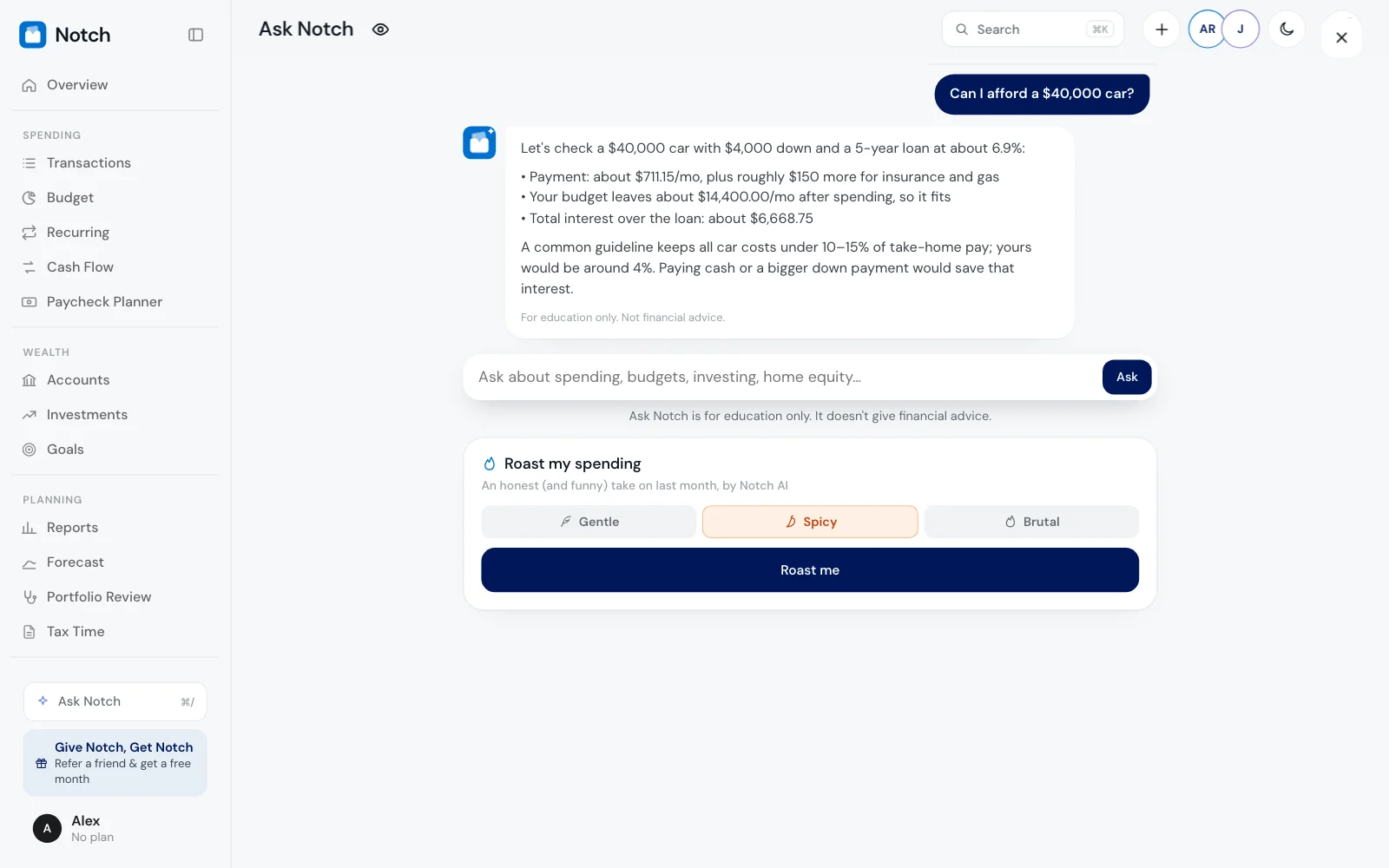
Ask Notch
Ask a question about your money and get an answer that uses your own numbers, with links to the page that has the details.
- Try questions like 'Can I afford a $400 car payment?' or 'Where did my money go last month?'
- Answers come from your accounts and plans, and are education, not financial advice.
- Notch includes 50 answers a month; Notch Pro includes 500.
Calculators
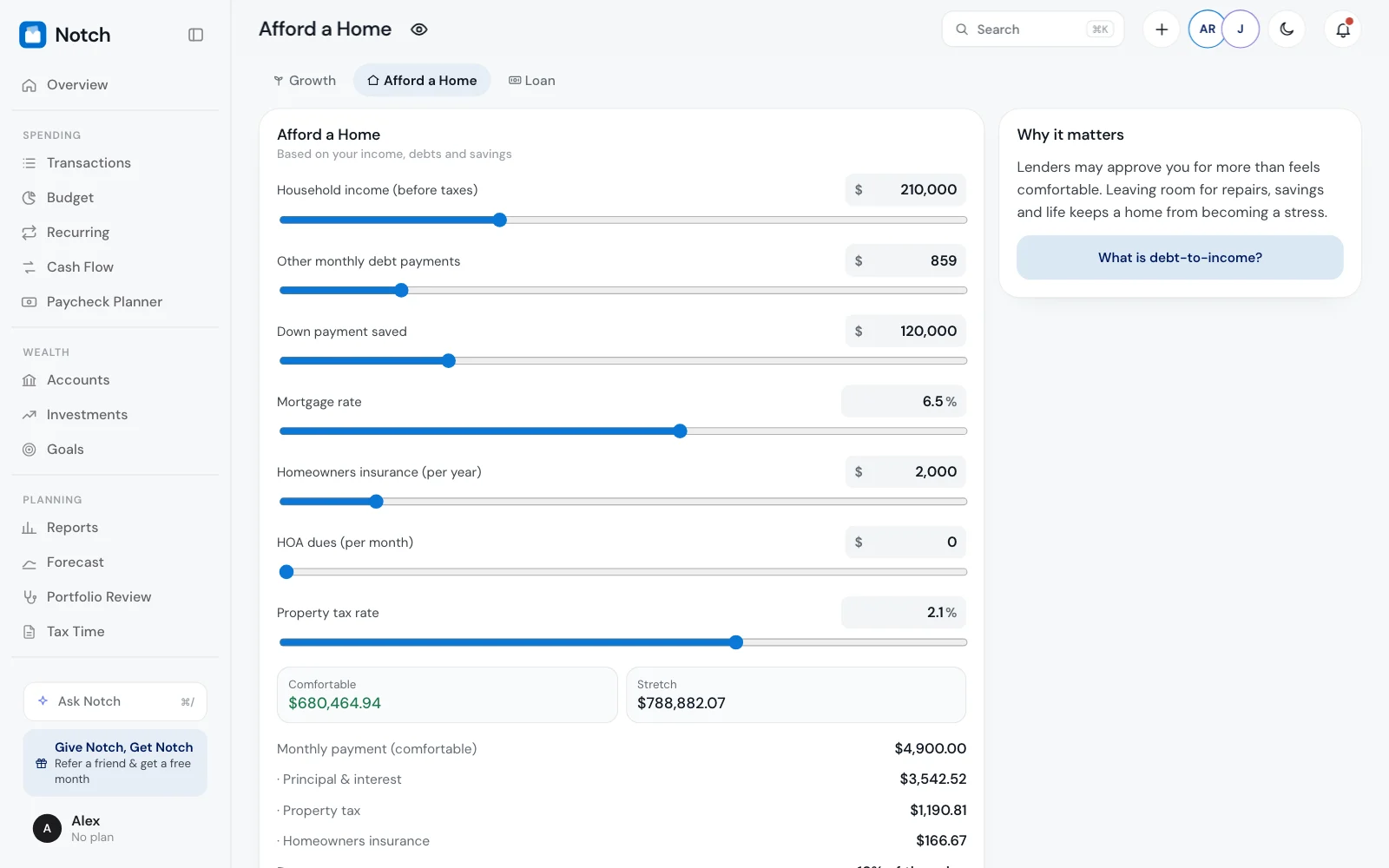
Loan payments, how much home you can afford and how an investment grows. Each one can start from your real numbers.
- Pick a calculator and adjust the inputs.
- Each calculator explains what drives the result.
- Open the related lesson to understand the idea behind it.
Settings
Your profile, household and partner, membership, notifications and appearance. Data & Privacy is where you can delete your data.
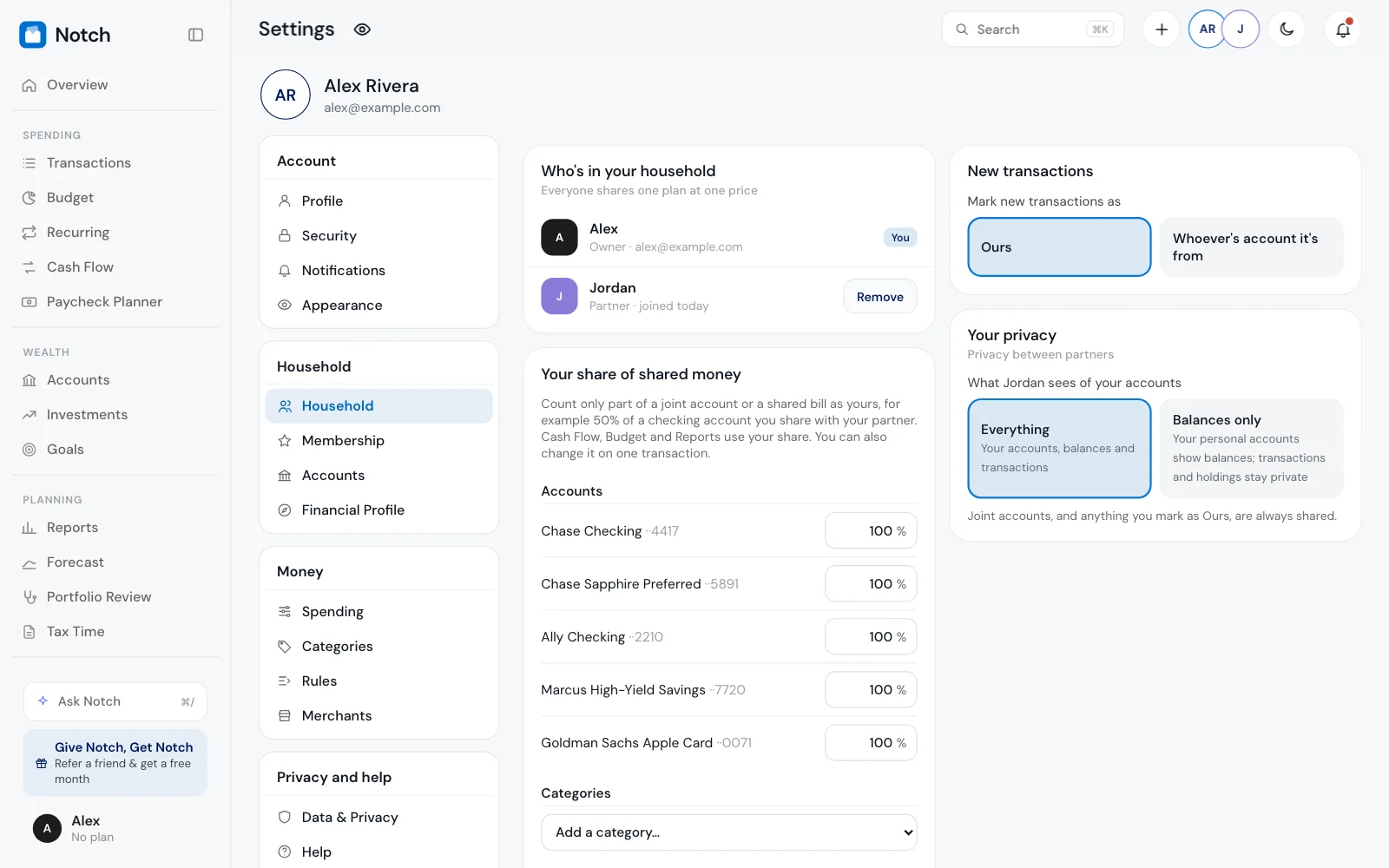
- Household is where you invite your partner and choose how you split shared costs.
- Membership shows your plan and lets you switch between monthly and annual.
- Data & Privacy is where you can delete your account and data.
Goals
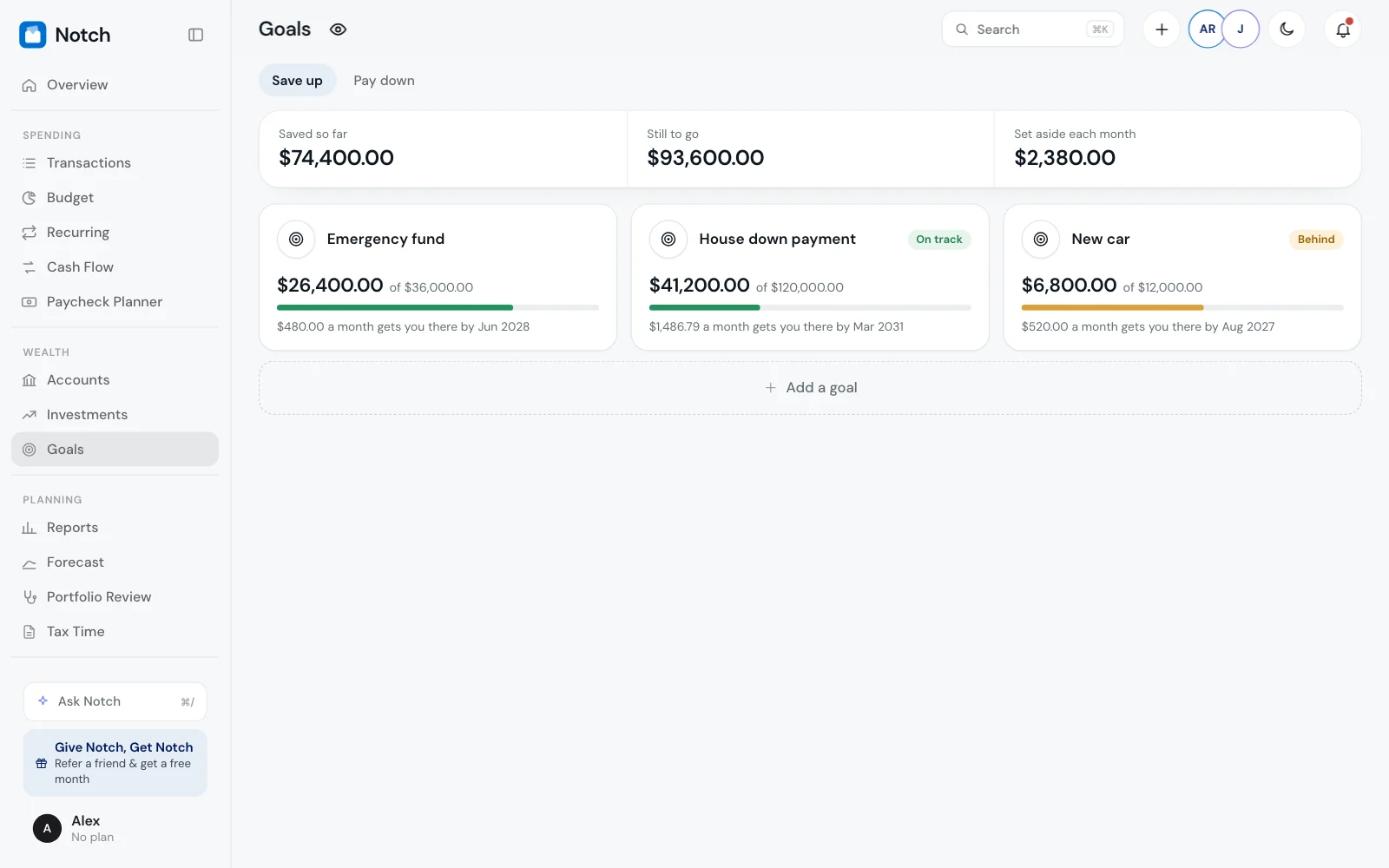
Save up for a home, a car, a trip or a cushion and see what to set aside each month. On Pay down, every card and loan gets a payoff plan, with highest rate first or smallest balance first.
- Pick what you're saving for, a target and a date, and Notch works out the monthly amount.
- Link a savings account so progress updates on its own, or add money by hand.
- On Pay down, set each card's APR and payment, then compare the three payoff methods.
Notch Edu
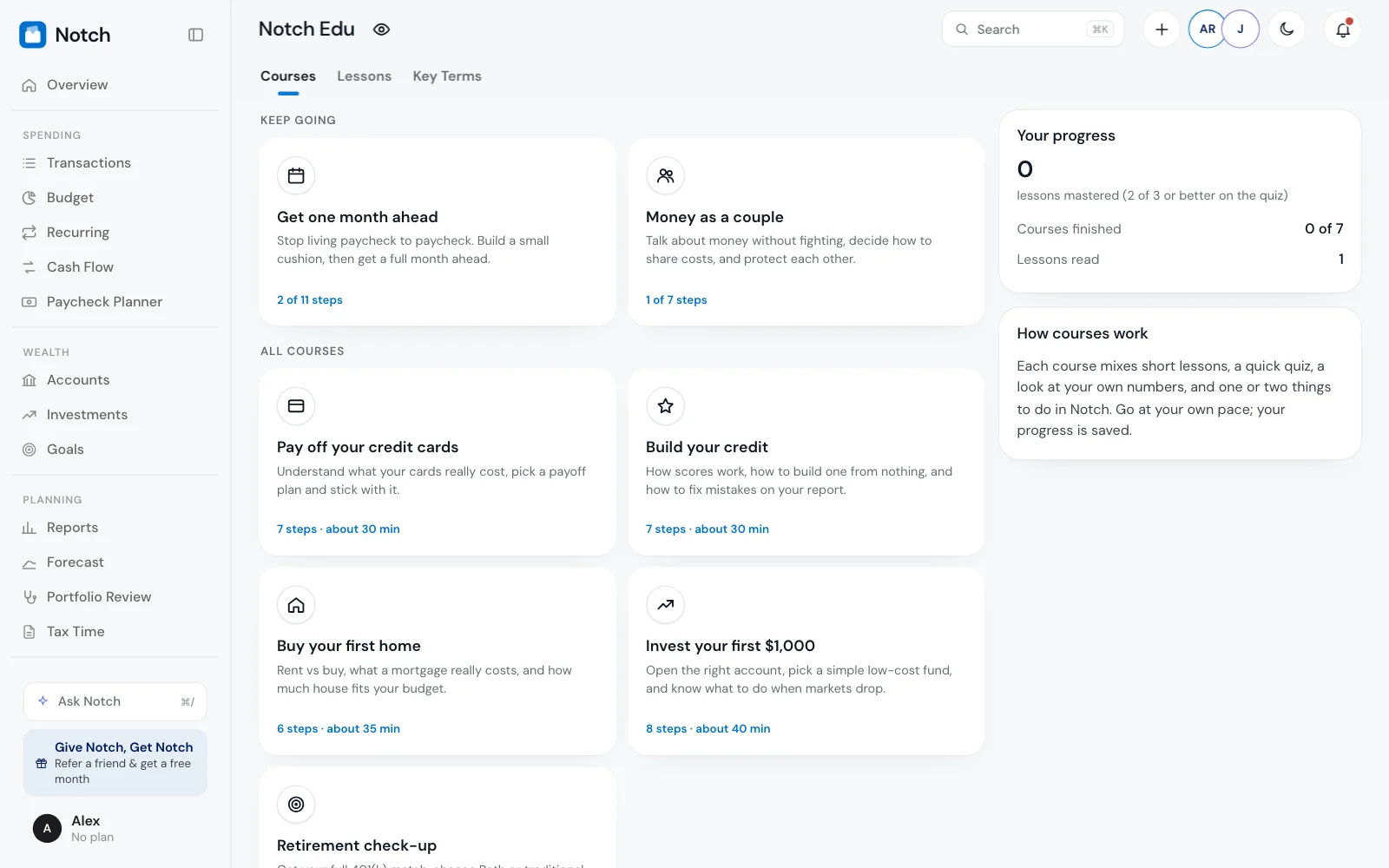
Courses, lessons and key terms in one place, from how a paycheck works to investing and real estate. Short reads with a quick quiz.
- Start with a course for a step-by-step path, or open any lesson on its own.
- Each lesson takes a few minutes and ends with a short quiz.
- Key Terms explains any money word you run into.
Email us and a person will get back to you, usually the same day.